

The Ultimate Tutorial for High-Quality IPTV Streaming on Your Desktop
Are you looking for a professional, sleek, and high-performance way to watch your favorite IPTV playlists on a larger screen? Bob Player has rapidly become one of the most recommended IPTV players in the market. Known for its ultra-smooth streaming, support for multiple playlists, and intuitive user interface, it offers a premium viewing experience that rivals traditional cable TV.
While Bob Player is natively designed for Android, iOS, and Smart TVs (like Samsung and LG), many users prefer the flexibility of watching on their computers. In this guide, we will walk you through the most effective methods to install Bob Player on PC, whether you are using Windows 10/11 or a Mac.
Using Bob Player IPTV PC setup allows you to leverage your computer's superior processing power and high-resolution monitor. Unlike basic web players, the Bob Player application supports advanced features like EPG (Electronic Program Guide), group categorization, and 4K/8K stream rendering. It is a "player-only" application, meaning it doesn't provide content itself, but it acts as a powerful engine for your legal M3U playlists.
The most reliable way to get the full-featured Bob Player experience on a PC is by using an Android Emulator. This software mimics an Android environment on your Windows or Mac, allowing you to run Bob Player APK for PC flawlessly.
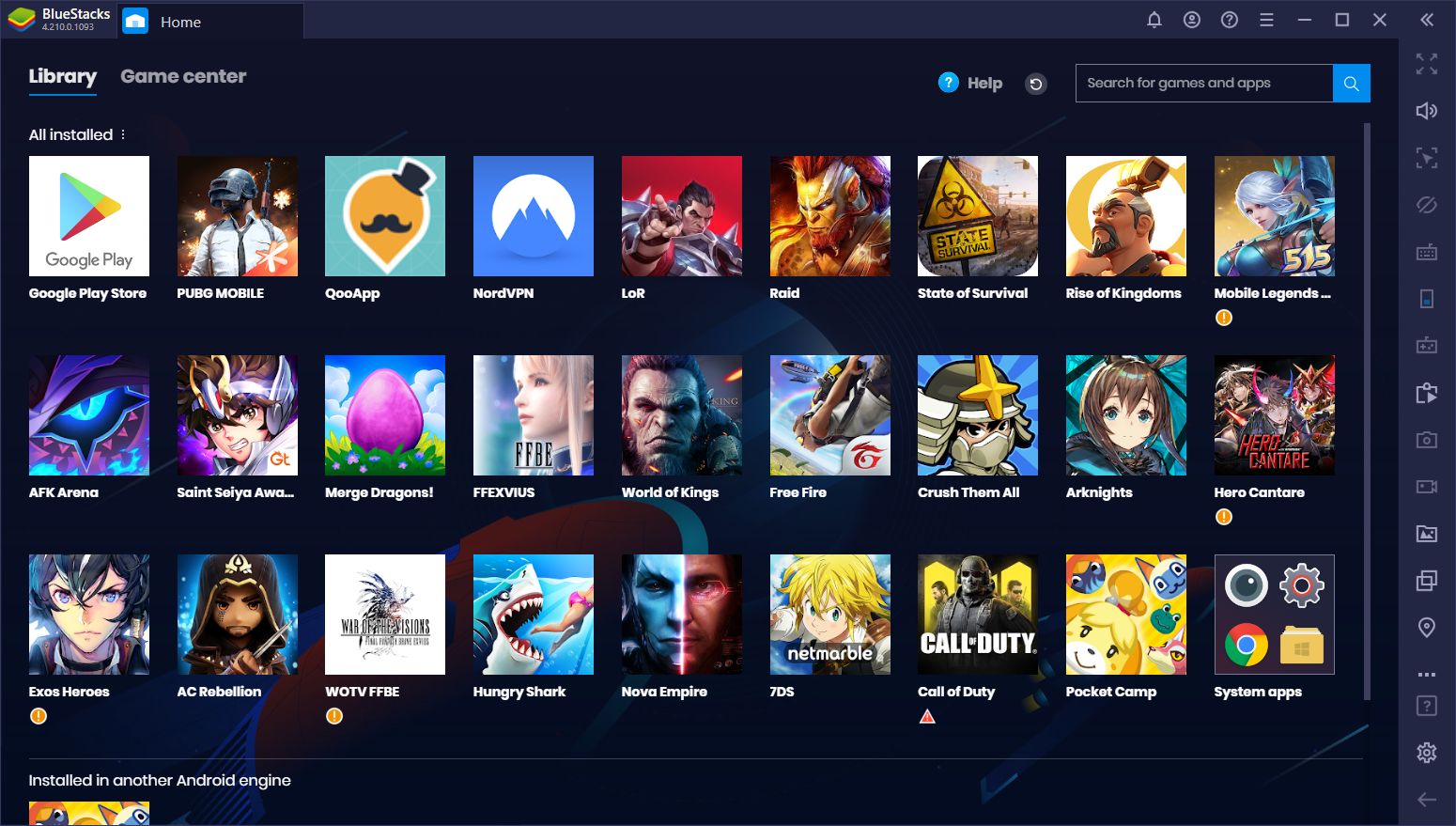
BlueStacks is the world's most popular emulator, offering great stability and high performance.
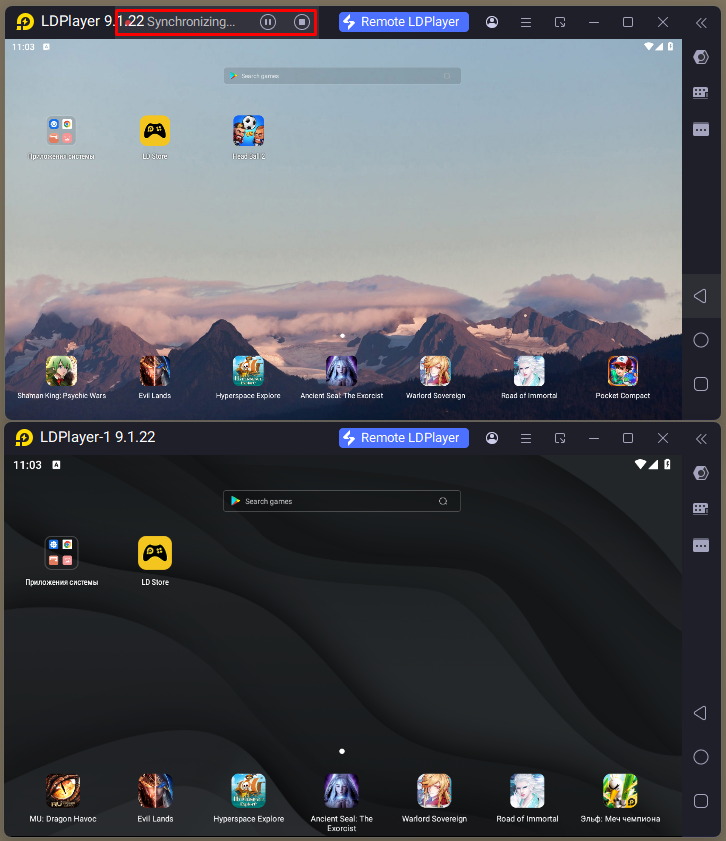
If you have an older PC or want a lightweight experience, LDPlayer is an excellent alternative for Windows users.
If you prefer not to install an emulator, you can use the official Bob Player website to manage your experience. While the primary app is for playback, the web interface is crucial for setup.
To configure your Bob Player for Windows or any other device, follow these steps:
Upload and switch between multiple IPTV subscriptions easily within one interface.
Optimized for high-bitrate streams, ensuring no buffering for 4K and 8K content.
Automatic loading of Electronic Program Guides so you always know what's playing next.
Secure your content with pin codes to restrict access to specific categories.
A modern, dark-themed interface that is easy to navigate with a mouse or keyboard.
Switch between channels almost instantly with Bob Player's optimized internal player.
Bob Player typically offers a 7-day free trial to new users. After the trial period, you must activate the app to continue using it. Here is how to activate Bob Player on PC:
Bob Player offers a free trial period (usually 7 days). After this, a small activation fee is required to support the developers and keep the app ad-free. Note that this fee does NOT include any TV channels; you must provide your own playlist.
Yes! Bob Player works perfectly on Windows 11 using emulators like BlueStacks, LDPlayer, or even the Windows Subsystem for Android (WSA) if you have it configured.
For Mac users, the best method is to install BlueStacks for Mac. Once installed, search for Bob Player in the Play Store within the emulator. It is also available on the Mac App Store for M1/M2/M3 chips under the "iPad & iPhone Apps" tab.
No. Bob Player is a media player. It is like a DVD player — it needs a "disc" (an M3U playlist or Xtream Codes API) to play any content.
The easiest way is to visit bobplayer.com, click "Manage Playlist," enter your Device ID, and paste your M3U URL into the provided field.
Ready to upgrade your streaming game?
Start Installation Now